
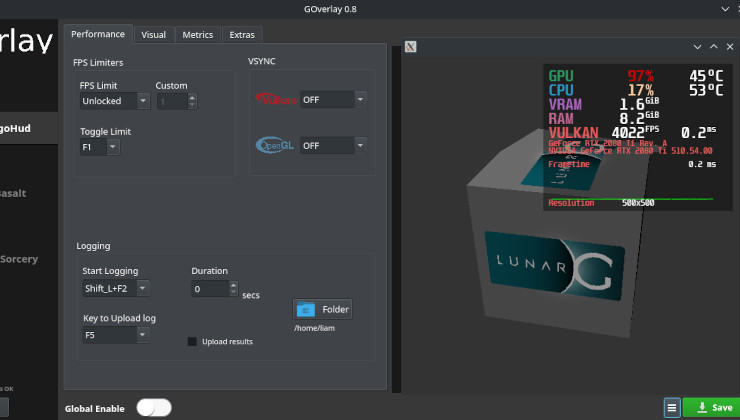
MangoHud is a widely used performance overlay for Linux that provides real-time insights into system metrics such as FPS, CPU and GPU usage, temperatures, and memory consumption. Beyond its live monitoring capabilities, MangoHud also supports the crucial feature of logging performance data, enabling users to record detailed metrics for later review.
Logging performance data is invaluable for gamers, developers, and system administrators who need to analyze application behavior over time, benchmark performance, or diagnose issues. By capturing this information in log files, MangoHud empowers users with the tools to make informed decisions and optimize their systems effectively.
How Logging Works in MangoHud
MangoHud’s logging feature operates by capturing and writing performance metrics to log files continuously while an application or game is running. This process runs in the background alongside the overlay itself, ensuring that every frame rendered and system statistic measured is recorded with precise timestamps.
The logging system hooks into the Vulkan or OpenGL graphics API calls used by the application and extracts relevant metrics at each frame or at configured intervals. Metrics such as frame times (the time taken to render each frame), CPU and GPU loads, and temperature sensors are polled repeatedly. This data is then serialized and appended to a log file.
MangoHud supports writing logs in formats that are easy to parse and analyze. Commonly, logs are stored in plain text or CSV (Comma-Separated Values) formats. These formats provide broad compatibility with spreadsheet software, custom parsing scripts, and visualization tools. The straightforward structure of these logs makes them highly accessible for both automated processing and manual inspection.
Enabling Logging in MangoHud
Activating logging in MangoHud is straightforward and can be accomplished either through command-line options or by modifying configuration files.
Using Command-Line Options
To enable logging for a specific session, users can add command-line flags when launching an application or game. For example, the flag MANGOHUD_LOG=1 can be set in the environment before running the application to activate logging. The exact syntax often looks like this in a Linux shell:
bashCopyEditMANGOHUD_LOG=1 mangohud ./game_executable
This command tells MangoHud to start logging performance data from the moment the application launches.
Configuration File Settings
Users can also enable logging through MangoHud’s configuration file, typically named MangoHud.conf and located in the user’s configuration directory (e.g., ~/.config/MangoHud/). By adding or modifying specific entries related to logging, users can make logging a default behavior without specifying environment variables every time.
An example entry in the configuration file might be:
iniCopyEditlog=true
log_path=/home/user/mangohud_logs/game_performance.csv
This snippet instructs MangoHud to log performance metrics and save the file at the specified location. The user can customize the log file path to keep records organized.
Use Cases for Logging Performance Data
Logging performance data with MangoHud serves many practical purposes across gaming, software development, and system administration.
Benchmarking Game Performance
Benchmarking involves measuring how well a game performs under various conditions. By logging FPS and frame times during gameplay, users can obtain an objective dataset that reflects actual system performance. This data helps to compare different hardware configurations, driver versions, or game settings to find the optimal balance between quality and performance.
Diagnosing Performance Bottlenecks
When a system or game runs poorly, identifying the cause can be challenging. Logging detailed CPU and GPU utilization alongside temperature and memory usage enables users to pinpoint whether the issue stems from thermal throttling, CPU limitations, GPU bottlenecks, or memory constraints. This insight is invaluable for troubleshooting and making informed hardware or software adjustments.
Collecting Data for Comparative Analysis Over Time
For users managing multiple systems or conducting longitudinal studies on performance, consistent logging allows for the collection of large datasets. These datasets can be analyzed to track performance degradation, effects of software updates, or improvements gained through system tuning. This kind of monitoring is common in development environments, QA testing, and professional benchmarking.
Tools for Analyzing Logged Data
The usefulness of logging data increases significantly when paired with appropriate tools for analysis and visualization.
MangoPlot and Visualization Utilities
MangoHud logs are commonly used with tools like MangoPlot, which converts raw log data into clear, visual charts that display FPS trends, frame time consistency, and resource utilization graphs. This visual feedback helps to quickly identify irregularities such as frame drops or CPU spikes.
Spreadsheet Software
Since MangoHud exports logs in CSV or plain text formats, these files can be opened in spreadsheet applications such as Microsoft Excel, LibreOffice Calc, or Google Sheets. Spreadsheets allow users to filter, graph, and statistically analyze performance metrics, helping to highlight patterns and anomalies.
Custom Scripts and Automation
For advanced users, MangoHud logs can be parsed by custom scripts written in Python, R, or other programming languages. These scripts can automate the process of extracting meaningful metrics, generating reports, or feeding data into continuous integration systems for automated performance regression testing.
Community and Third-Party Tools
There is a growing ecosystem of community-developed utilities that support MangoHud logs. These include enhanced viewers, benchmark aggregators, and performance comparison tools designed to make data interpretation more accessible and actionable.
Limitations and Considerations
While MangoHud’s logging functionality is powerful, it is important to understand its limitations and best practices to maximize its benefits.
Performance Overhead
Logging introduces a small amount of overhead because the system must gather, format, and write data continuously during runtime. While generally minimal, on very low-end systems or during intensive workloads, this overhead could impact performance. Users should be mindful when enabling logging for extended periods, especially during critical performance tests.
Log File Size and Management
Depending on the duration of the logged session and the frequency of data collection, log files can grow large. Users should monitor disk space and consider rotating or archiving logs regularly to prevent storage issues.
Accuracy and Timing
While MangoHud strives for accurate timing of frame intervals and system metrics, factors such as driver behavior, kernel scheduling, and sensor polling rates can introduce slight inaccuracies. For the most precise benchmarking, users may want to complement MangoHud data with specialized profiling tools.
Configuration Complexity
Some users might find configuring MangoHud’s logging options challenging at first, especially when customizing log paths, formats, or integrating with external tools. Careful reading of documentation and community support can ease this learning curve.
Conclusion
MangoHud’s ability to log detailed performance data significantly enhances its value beyond a simple on-screen overlay. By capturing key metrics such as frame times, FPS, CPU and GPU utilization, temperatures, and memory usage in persistent log files, MangoHud empowers users to conduct in-depth analysis, benchmarking, and troubleshooting.
Enabling logging is straightforward, either through command-line flags or configuration files, making it accessible to users of all skill levels. When paired with visualization tools or custom analysis scripts, MangoHud logs provide actionable insights that help optimize gaming experiences and system performance.