
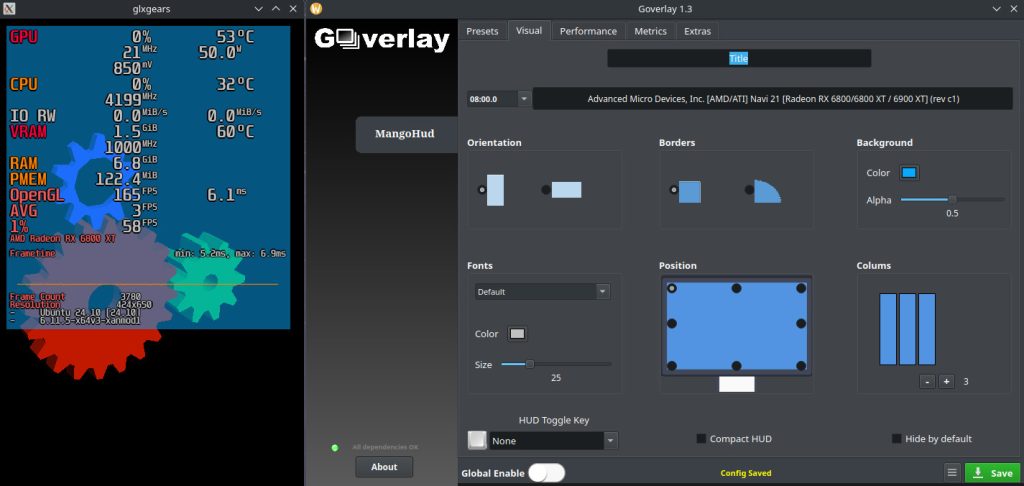
MangoHud is a powerful performance overlay designed specifically for Linux users, offering real-time system metrics such as FPS, CPU/GPU usage, temperatures, and more. One of its key strengths lies in its compatibility with major graphics APIs, ensuring users can monitor performance across a wide range of games and applications.
Understanding which graphics APIs MangoHud supports is essential for seamless integration and accurate monitoring. Whether you’re a gamer, developer, or system tester, knowing how MangoHud interacts with Vulkan and OpenGL helps you optimize performance tracking and troubleshoot issues effectively across various Linux environments.
Fully Supported Graphics APIs
Vulkan API
MangoHud offers full, native support for the Vulkan graphics API. Vulkan is a modern, low-overhead API that provides high-efficiency, cross-platform access to modern GPUs. It is widely used in newer Linux games and applications due to its robust performance advantages.
Key Features of Vulkan Support:
- MangoHud integrates seamlessly with Vulkan-based applications.
- It supports both native Vulkan titles and those running through Proton, Steam Play, or DXVK.
- There is minimal setup required, making it user-friendly for most users.
- It can be enabled simply by prefixing the game’s launch command with
mangohud, such as:mangohud ./game-executable - In Steam, it can be enabled by setting launch options to:
mangohud %command%
The out-of-the-box compatibility with Vulkan makes MangoHud an ideal choice for monitoring performance in AAA Linux-native games, as well as those utilizing Vulkan through translation layers like DXVK.
OpenGL API
MangoHud also provides extensive support for OpenGL, which has been the dominant graphics API for Linux gaming and development for many years. Although it is an older API compared to Vulkan, many games, emulators, and software still rely on it.
Key Features of OpenGL Support:
- MangoHud supports OpenGL versions 3.3 and above.
- It is highly suitable for older or legacy titles, as well as various Linux-compatible emulators and 2D/3D software.
- Integration with OpenGL-based applications often requires using
LD_PRELOADto inject the overlay:LD_PRELOAD=/path/to/libMangoHud.so ./game-executable - Alternatively, it can be set up system-wide or within shell scripts to streamline the process.
While slightly more complex to configure compared to Vulkan, OpenGL support in MangoHud is robust and reliable once properly set up.
Experimental or Partial Support
Direct3D via Proton/Wine
While MangoHud does not support Microsoft’s DirectX APIs (Direct3D 9/10/11/12) natively, it can still be used with DirectX-based games through Proton or Wine, as long as those games are rendered via Vulkan or OpenGL translation layers.
Examples of Translation Tools:
- DXVK: Translates Direct3D 9, 10, and 11 calls into Vulkan.
- vkd3d: Translates Direct3D 12 into Vulkan.
These tools allow MangoHud to hook into the translated Vulkan or OpenGL pipeline, enabling performance overlay functionality for many Windows-exclusive games running on Linux.
Important Note:
- MangoHud will not work if a game uses DirectX without a translation layer.
- Proper translation setup is required within Proton, Lutris, or Wine for compatibility.
Use Cases and Scenarios
Understanding when and where to use MangoHud with specific graphics APIs can help users maximize performance monitoring.
Vulkan Use Cases
- Modern AAA Linux-native titles such as “Shadow of the Tomb Raider” or “DOOM Eternal.”
- Games running via Proton using DXVK to translate DirectX calls.
- Steam Deck optimizations and diagnostics, where Vulkan is widely adopted for power efficiency.
- Game development environments where Vulkan rendering is used.
OpenGL Use Cases
- Indie games and older titles that still rely on the OpenGL rendering pipeline.
- Emulators such as Dolphin or PPSSPP, which use OpenGL by default on Linux.
- Open-source graphics applications and simulations.
Proton/Wine Use Cases
- Windows-exclusive games that run on Linux through Proton or Lutris.
- Titles requiring DXVK or vkd3d for DirectX-to-Vulkan translation.
- Experimental or legacy game support using custom Wine builds with translation layers enabled.
Configuration Tips by API
Proper configuration ensures optimal performance and accurate metric reporting. Below are guidelines for setting up MangoHud per API.
Vulkan Configuration
- Requires minimal setup.
- Default command line usage:
mangohud ./game-executable - Steam users can set launch options in the game’s properties:
mangohud %command% - Optional configuration via
~/.config/MangoHud/MangoHud.confto customize layout, colors, font sizes, metrics shown, and more.
OpenGL Configuration
- More setup steps than Vulkan due to the need for
LD_PRELOAD. - Example usage:
LD_PRELOAD=/usr/lib/libMangoHud.so ./game-executable - Ensure no conflicts with other overlays or preload libraries.
- Environment variables like
MANGOHUD=1may also be required. - Steam integration may need launching from a script with proper preload paths.
Sample OpenGL Setup Script:
#!/bin/bash
export LD_PRELOAD=/usr/lib/libMangoHud.so
export MANGOHUD=1
./game-executable
Troubleshooting by API
Identifying and resolving issues with MangoHud can depend on the specific graphics API in use. Below are some common issues and suggestions.
OpenGL Troubleshooting
- Overlay Not Appearing: Confirm
LD_PRELOADis set correctly and points to the correct library file. - Crashes on Launch: Try disabling other preloaded libraries or overlays. Ensure OpenGL version is 3.3 or higher.
- Conflict with Other Tools: Some window managers or launchers may interfere with environment variables.
Vulkan Troubleshooting
- Overlay Does Not Show Up: Ensure the game is using Vulkan and not OpenGL or DirectX without translation.
- Wrong Metrics or Artifacts: Check if multiple HUDs are overlapping (e.g., Steam + MangoHud).
- Framerate Cap Issues: Disable vsync or caps set by the compositor or Steam runtime.
Proton/Wine Troubleshooting
- Inconsistent Performance Data: Verify DXVK/vkd3d is properly configured and the game is rendering through Vulkan.
- Missing Overlay in Wine: May need to use a wrapper script to launch Wine with MangoHud configured.
- Unsupported DirectX Calls: If a game uses DirectX 12 without translation, MangoHud will not work.
Conclusion
MangoHud provides broad and flexible support for a wide range of graphics APIs commonly used in Linux gaming. With full compatibility for Vulkan and OpenGL, and partial support for Direct3D via Proton and Wine, it is an essential tool for performance monitoring.
For users running modern Vulkan-based games or legacy OpenGL applications, MangoHud offers reliable, in-depth performance data with minimal setup. When combined with Proton or translation layers like DXVK, it extends its utility to a vast library of Windows games on Linux.